This section explains the common step settings.
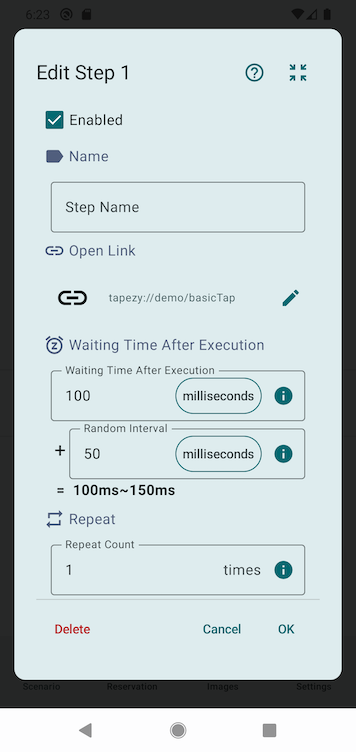
Enabled
Determines whether this step is executed. If you uncheck this box to disable a step, it will be skipped during scenario playback (for detection steps such as Image Detection, the actions on success and failure will not be executed either).
Disabled steps can still be edited, duplicated, and reordered as usual.
You can also toggle a step's enabled state from the checkbox on the left edge of each row in the Step List, or from the Enable / Disable items in each step's three-dot menu.
Note that playing a single step with the ▶ button in the Step List will execute the step even if it is disabled.
Name
You can assign a custom name to each step.
The name specified here will be displayed in the Step List and other interfaces.
If left unspecified, the step type (e.g., “Tap”) will be displayed.
Wait Time After Execution
Sets the base wait time after this step is executed. The next step will start after this waiting time, plus an optional random interval.
You can tap the unit field to change the time unit.
Random Interval
Sets the maximum random time to add after this step is executed. A random value between 0 and this value will be added to the base wait time, creating variation in the interval before the next step.
Repeat Count
Specifies the number of times this step will be repeated before proceeding to the next step.
Other settings are step-specific and depend on the selected step type.
For more details, refer to the descriptions of specific steps such as Tap.
